Openstack Cloud
Introduction
Openstack is open source cloud platform. It is used to create private clouds by virtualising compute, network and storage resources, enabling API-based multi-tenant use of virtual resources based on self-service model.
In general, Openstack cluster consists of the following nodes:
- control plane nodes,
- network nodes,
- compute nodes,
- storage nodes
There are many ways to deploy Openstack clusters, this post shows how to deploy a fully functional Openstack cluster on a single node, by using Kolla-ansible. Kolla-ansible is a deployment tool which installs Openstack components as Docker containers. We will install Openstack core components and additionally cloud load balancer service (Octavia).
Before starting any work, first we have to decide on network layout.
Openstack cluster consists of many network planes,
- API network,
- Cluster network,
- Storage network,
- Tenant traffic network (Neutron network), etc.
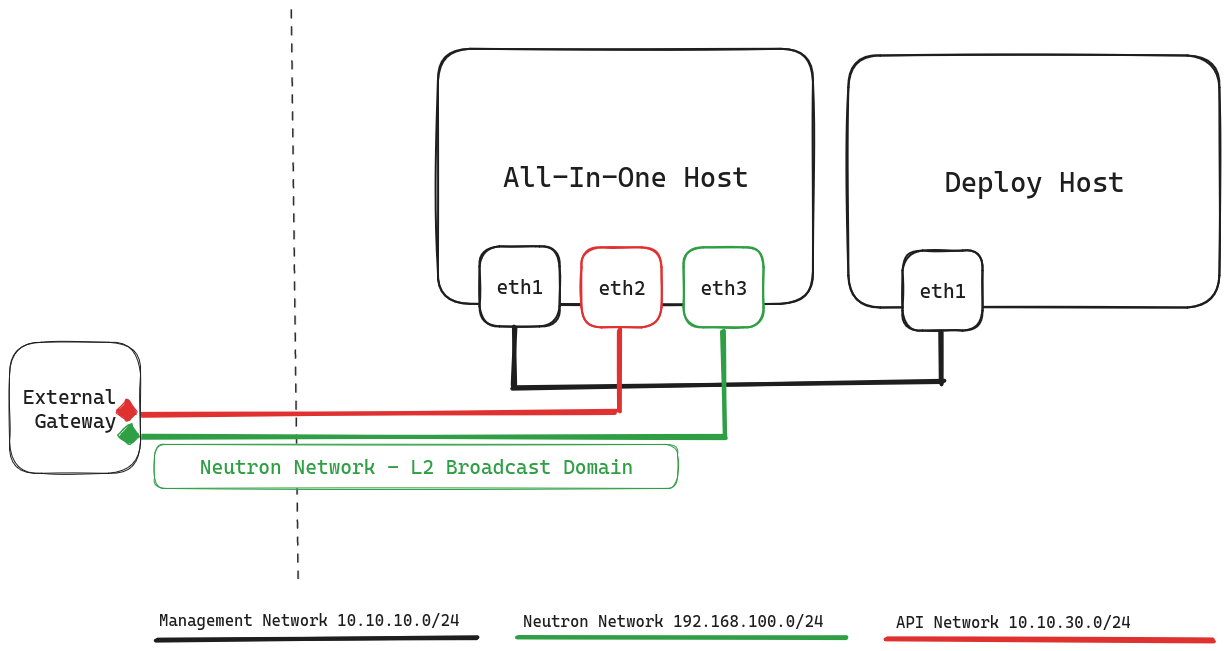
In a production setup these networks should be dedicated, physical networks. Our single-node cluster will have three interfaces, dedicated to API, management and Neutron networks. Since we are not using external storage we don’t need to dedicate network interface to storage.
Openstack virtual routers (virtual routers created by tenants), will rely on ARP to find their next hop (which is usually physical router).
We will need two hosts:
- deployment host, we will run kolla-ansible from this host, initial configuration stored here
- all-in-one host, will contain all cluster components, as well as run virtual instances, virtual networks, etc.
We will allocate following CPU/Memory resources to the nodes:
| node | CPU | RAM (GB) |
|---|---|---|
| deploy | 1 | 2 |
| aio | 24 | 32 |
IP address plan for our setup will be :
| node | management network | api network | neutron network | VIP address |
|---|---|---|---|---|
| deploy | 10.10.10.50 | |||
| aio | 10.10.10.51 | 10.10.30.50 | 192.168.100.50 | 10.10.30.55 |
The following diagram shows network topology of Openstack-AIO setup.
This guide is based on deployment docs described at https://docs.openstack.org/project-deploy-guide/kolla-ansible/2023.1/
Roughly, the steps we need to perform are these:
- Prepare deployment host
- Configure deployment
- Start cluster deployment
- Verify Openstack operation
These guide has been tested on Ubuntu 22.04. Clone this repository , the folder scripts/ contains the shell scripts we will work with:
$ ls *sh
openstack-get-images.sh
prepare-kolla-hosts.sh
run-local-registry.sh
run-my-init.sh
Here is a short explanation of what each script does :
- run-local-registry.sh - runs local docker registry on deployment host, so we can cache container images needed while installing cluster components.
- openstack-get-images.sh populate local docker registry with container images
- prepare-kolla-hosts.sh this is main installation script, performs many steps as per the docs, setup venv environment, download system dependencies, download Ansible/Galaxy dependencies …
- run-my-init.sh performs post-install creation of public/private networks, router, and uploads Cirros image to the cluster.
Prepare deployment host
Deployment hosts’ purpose is to :
- store and run Ansible playbooks against target nodes (control plane nodes, compute nodes, network nodes), including cluster installation, cluster node additions/removals
- run a local docker registry to store Openstack container images
On deployment host, first we will install local docker registry. We will assume these IP addresses,
- local docker registry: 10.10.10.50
- Openstack VIP address: 10.10.30.55
In both single node and multi node control plane, VIP address will provide HA to cluster components, as well as to web based user interface (Horizon).
Run the script run-local-registry.sh or simply execute
docker run --detach --publish 5000:5000 --restart=always --name registry registry:2
Next, we will populate local docker registry with the container images we need for our cluster. This is accomplished by running openstack-get-images.sh.
This script will do the following:
- download Openstack container images
- re-tag for local registry
- push to local registry
Once the script is done, you can query your local docker registry to confirm that it has been populated with docker images :
demo@deploy-0:~$ curl --silent http://10.10.10.50:5000/v2/_catalog | jq
{
  "repositories": [
    "kolla/ubuntu-source-base",
    "kolla/ubuntu-source-cron",
    "kolla/ubuntu-source-designate-api",
    "kolla/ubuntu-source-designate-backend-bind9",
    "kolla/ubuntu-source-designate-central",
    "kolla/ubuntu-source-designate-mdns",
    "kolla/ubuntu-source-designate-producer",
    "kolla/ubuntu-source-designate-sink",
    "kolla/ubuntu-source-designate-worker",
    "kolla/ubuntu-source-fluentd",
    "kolla/ubuntu-source-glance-api",
    ...
  ]
}
Kolla-ansible needs passwordless login to remote nodes, so we will generate SSH keys on deployment host and copy the keys to the target nodes :
ssh-keygen -t rsa -N '' -f ~/.ssh/deploy-key

# copy ssh key to all remote hosts
ssh-copy-id -i ~/.ssh/deploy-key.pub vagrant@10.10.10.51
...
Configure deployment
There are a series of steps we need to execute on deployment node, prior to starting with cluster deployment:
- Install dependencies
- Install Kolla-Ansible
- Install Ansible Galaxy requirements
- Configure Ansible
- Prepare initial configuration
All these steps are contained in the script prepare-kolla-hosts.sh.
If you are changing the Openstack release in the script, you need to also adjust Ansible dependencies for your Openstack release, according to official installation documents. Current script is configured for “2023.1” Openstack release.
This script performs the following customisation:
- set Openstack virtual IP (IP address shared by Openstack services) VIP_ADDR=10.10.30.55
- set Openstack Management interface MGMT_IFACE=eth1 (this is network 10.10.10.x**
- set Neutron network interface EXT_IFACE=eth3 (this is network 192.168.100.x)
If you use different IP plan, you need to adjust the settings accordingly, by editing the script prepare-kolla-host.sh
$ tail -n20 prepare-kolla-hosts.sh

# This is the VIP IP we created initially
VIP_ADDR=10.10.30.55
# VM interface is ens1
MGMT_IFACE=ens1
# This is the interface used for Neutron network
EXT_IFACE=eth3

# now use the information above to write it to Kolla configuration file
sudo tee -a /etc/kolla/globals.yml << EOT
kolla_base_distro: "ubuntu"
kolla_internal_vip_address: "$VIP_ADDR"
network_interface: "$MGMT_IFACE"
neutron_external_interface: "$EXT_IFACE"
EOT
Also, to speed up the installation process by using the local docker registry, we will add these variables to /etc/kolla/globals.yml.
sudo tee -a /etc/kolla/globals.yml << EOT
docker_registry: 10.10.10.50:5000
docker_registry:_insecure: "yes"
EOT
Now we can run
./prepare-kolla-hosts.sh
and upon successful finish we are ready to start deploying the cluster.
Initiate cluster deployment
We will be using Python virtual environments, so first we need to activate virtual environment created by the script ./prepare-kolla-hosts.sh on previous steps.
- Activate Python virtual environment
source /opt/venv/2023.1/bin/activate
- Perform cluster bootstrap
Kolla-ansible depends on Ansible inventory files to specify node roles, node connection parameters, etc. By default it comes with two inventory files named ‘all-in-one’ and ‘multinode’. Depending on the desired cluster topology, you may need to adjust Ansible inventory file.
For example, inventory file all-in-one deploys everything to localhost.
$ head all-in-one
# These initial groups are the only groups required to be modified. The
# additional groups are for more control of the environment.
[control]
localhost       ansible_connection=local

[network]
localhost       ansible_connection=local

[compute]
localhost       ansible_connection=local
...
While inventory file multinode splits cluster components into several nodes.
$ head multinode
# These initial groups are the only groups required to be modified. The
# additional groups are for more control of the environment.
[control]
# These hostname must be resolvable from your deployment host
control01
control02
control03

# The above can also be specified as follows:
#control[01:03]     ansible_user=kolla
...
For our setup, we will edit ‘all-in-one’ inventory file, we will specify ssh key created earlier, api interface, which in this case is eth2 (network 10.10.30.x)
[control]
10.10.10.51 api_interface=eth2 ansible_private_key_file=/home/vagrant/.ssh/deploy-key

[network]
10.10.10.51 api_interface=eth2 ansible_private_key_file=/home/vagrant/.ssh/deploy-key
Next, we will perform a series of step, first, bootstrap cluster creation.
kolla-ansible -i all-in-one bootstrap-servers
Next we perform container image pull
kolla-ansible -i all-in-one pull
Then we perform cluster prechecks
kolla-ansible -i all-in-one prechecks
We start cluster deployment
kolla-ansible -i all-in-one deploy
Last, we perform cluster post-deploy
kolla-ansible -i all-in-one post-deploy
The last step will create cluster admin credentials file. At this point the cluster will not contain any networks, routers, OS images so we need to create them as well.
We will :
- create one external network (this would be cluster’ egress network, tenant networks can allocate floating IPs out of external network)
- create one internal(tenant) network (for our VMs)
- upload cirros image (lightweight OS image)
Adjust IP range for our public (external) network :
$ head run-my-init.sh
# Set you external network CIDR, range and gateway, matching your environment, e.g.:
export EXT_NET_CIDR='192.168.100.0/24'
export EXT_NET_RANGE='start=192.168.100.100,end=192.168.100.200'
export EXT_NET_GATEWAY='192.168.100.1'
/opt/venv/yoga/share/kolla-ansible/init-runonce
and run the script :
$ ./run-my-init.sh
Before running run-my-init.sh we need to make sure aio node is reachable from deploy node, simply add this route on deploy node,
ip ro add 10.10.30.0/24 via 10.10.10.50
At this point we will have a functional cluster with one router, one public network, one private network and cirros image. Admin password is stored in the file /etc/kolla/admin-rc.sh, we can login via GUI or use openstack console client which was installed during previous steps.
Verify cluster operation
We will create one VM instance, login to this instance and check our outgoing networking,
. /opt/venv/2023.1/bin/activate # activate our python virtual environment
. /etc/kolla/admin-openrc.sh  # source our admin credentials

#
openstack server create \
    --image cirros \
    --flavor m1.tiny \
    --key-name mykey \
    --network demo-net \
    demo1
We can open Horizon (openstack GUI) and get console login to our instance. Also, on network node (our aio node) we can list our virtual router, which are implemented as Linux network namespace,
vagrant@aio:~$ sudo ip netns ls
qrouter-43d2c840-93b1-455b-93d1-276230253821 (id: 1)
qdhcp-f16f9fa9-a96a-4564-a023-7d7af2aee152 (id: 0)
Load balancer service - Octavia
Build Octavia image
Octavia load balancer service enables our VMs to be accessed externally via a stable entry point (IP range of external network). Octavia uses HAProxy to implement load balancer service.
We need to build the load balancer image, called ‘amphora’, and upload it to our cluster. The script ./get-amphora-img.sh performs the necessary steps. We have to execute it from deploy host or any other host with working openstack CLI and admin credentials.
The scripts will perform these steps on the host it is run :
- install additional packages : qemu debootstrap, etc
- clone git repo of amphora image
- create a python virtual environment
- create Amphora image inside python virtual environment
- upload Amphora image to openstack using CLI
Once Amphora image is uploaded, the load balancer service is ready for use.